Skip to content

Our own product · SmartPrint

Scan. Submit. Configure. Print.

SmartPrint is our own product for local Xerox and print shops. A file sent from a customer's phone arrives at the counter as an order that is ready to print.

The problem

Documents arrive on WhatsApp and email, usually on a staff member's own phone. Staff find the attachment, open it, call the customer to ask about colour, sides and copies, set up the printer and only then print. Customers wait and settings get missed. Meanwhile, ID copies, certificates and contracts stay in personal chats long after the job is done.

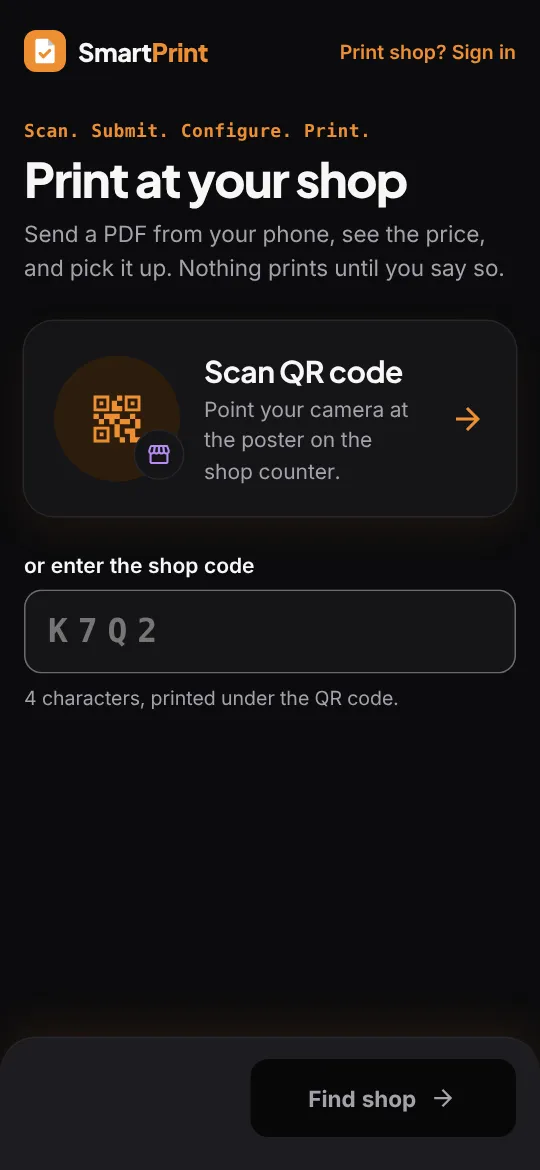
SmartPrint's start screen on a phone: scan the shop's QR code or enter its four-character shop code

Screens are from SmartPrint, shown with a demo shop and sample files.

Why We Built SmartPrint

A print order should take the customer one step and the counter none. Instead, every order starts with a hunt through a chat app, and the customer's documents stay on someone's phone.

  • Time lost at the counter

    Finding the file, opening it and calling to ask how to print it. The counter spends its time on admin instead of printing.

  • Prints that come out wrong

    Settings agreed over chat get missed: colour instead of black and white, one side instead of two, the wrong number of copies.

  • Documents nobody deletes

    ID copies, certificates and contracts stay in personal WhatsApp and email, visible to anyone with the phone. Customers deserve better.

What We Built

  • A QR code and a four-character code for each shop, with no app to install and no account to create
  • PDF upload with a page preview, and a clear reason when a file cannot be printed
  • Print settings: colour or black and white, single- or double-sided, paper size, copies and pages
  • A sheet count and price that update with every choice
  • A job reference and live status: sent, approved, printing page by page, ready
  • Shop approval, then a desktop print agent that sends the job to the shop's printer
  • Payment at the counter, with no online payment step
  • Private file storage: only the shop's staff can open a file, and it is deleted automatically after the job is closed

How It Works, Step by Step

  1. Step 1: Scan the code at the counter

    A QR poster opens the shop's page, or the customer types the four-character shop code. No app and no sign-up.

    The start screen with a Scan QR code option and a shop-code field
  2. Step 2: Upload the document

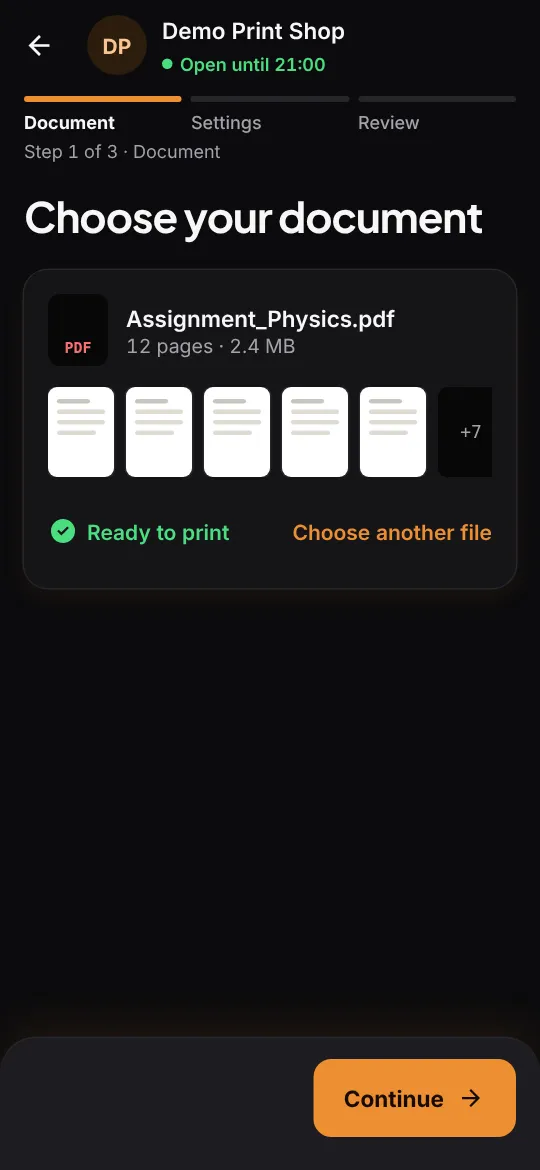
    The PDF is checked as it arrives and shown page by page, so the customer knows it is the right file.

    The choose-your-document step showing a 12-page PDF with page thumbnails, marked ready to print
  3. Step 3: Choose how it prints, and see the price

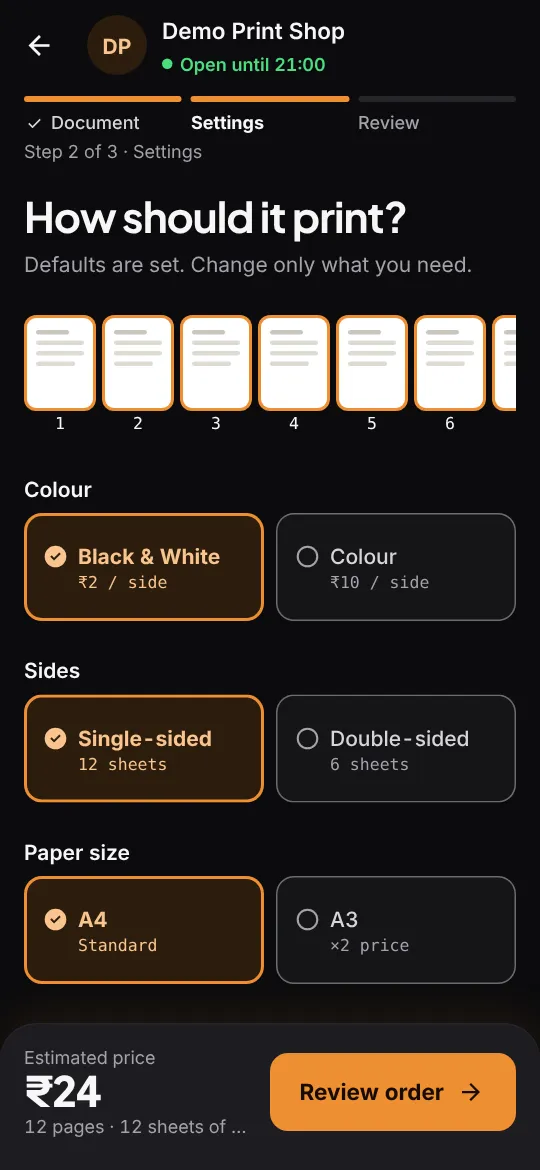
    Defaults are already set. Colour, sides, paper size and copies each update the sheet count and the price straight away.

    The print settings step with black-and-white, single-sided and A4 selected and an estimated price of ₹24
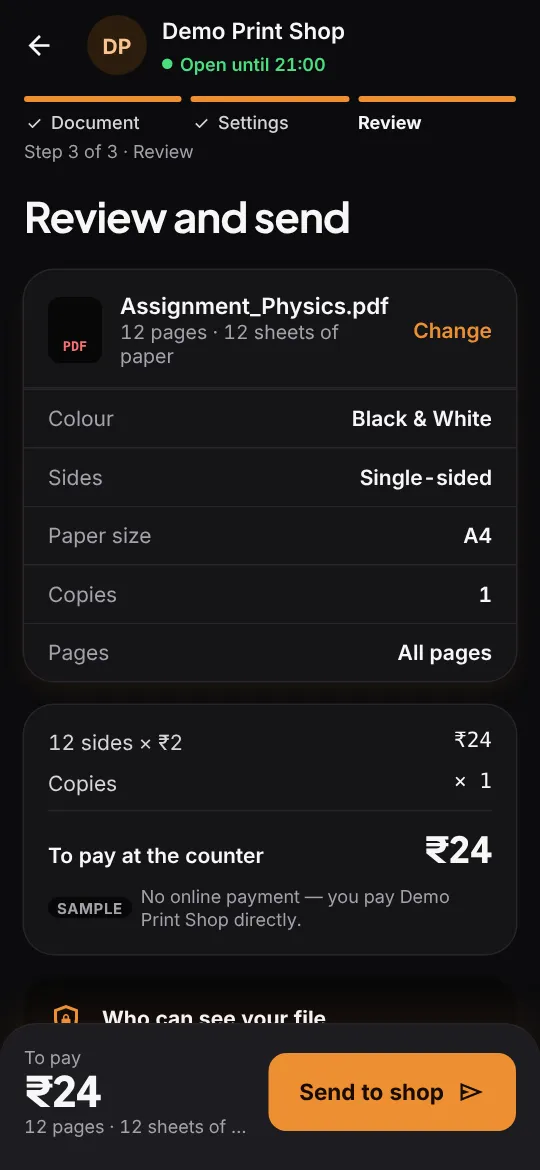
  4. Step 4: Review, then send

    One summary of the file, the settings and the amount to pay at the counter. Nothing prints until the customer sends it.

    The review screen listing colour, sides, paper size, copies and pages, with ₹24 to pay at the counter and a Send to shop button
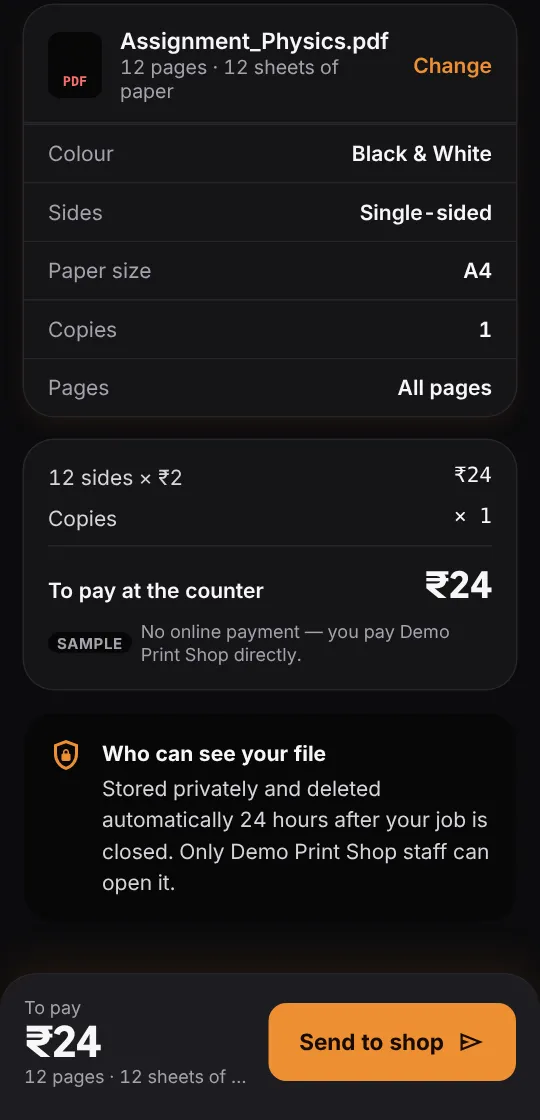
  5. Step 5: Know who can see the file

    Before sending, the customer is told the file is stored privately, only the shop's staff can open it, and it is deleted automatically after the job is closed.

    The review screen's privacy note: the file is stored privately, deleted automatically after the job is closed, and only the shop's staff can open it
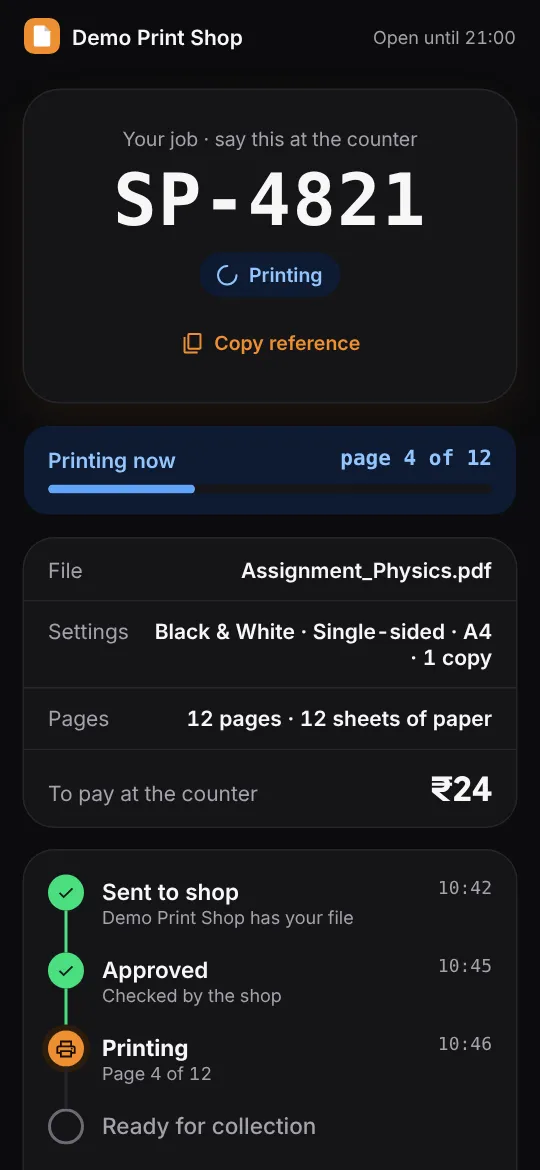
  6. Step 6: Follow the job live

    A job reference to say at the counter, and each stage as it happens: sent, approved by the shop, printing page by page.

    The job status screen for job SP-4821 showing printing in progress at page 4 of 12
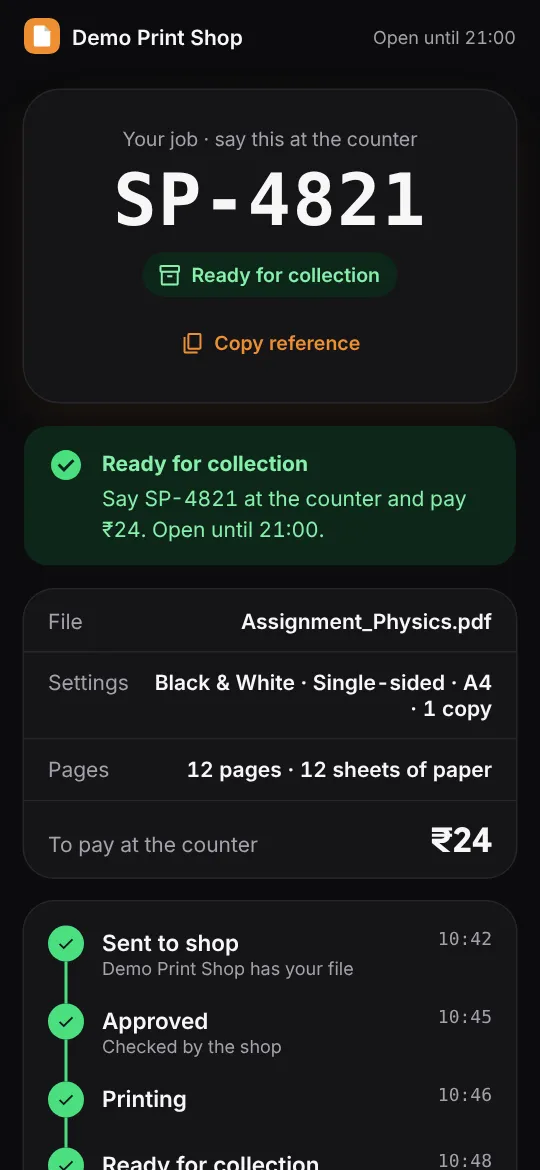
  7. Step 7: Collect and pay

    When the job is ready, the customer is told to give the reference at the counter and pay there.

    The job status screen showing ready for collection, with the reference and the amount to pay at the counter
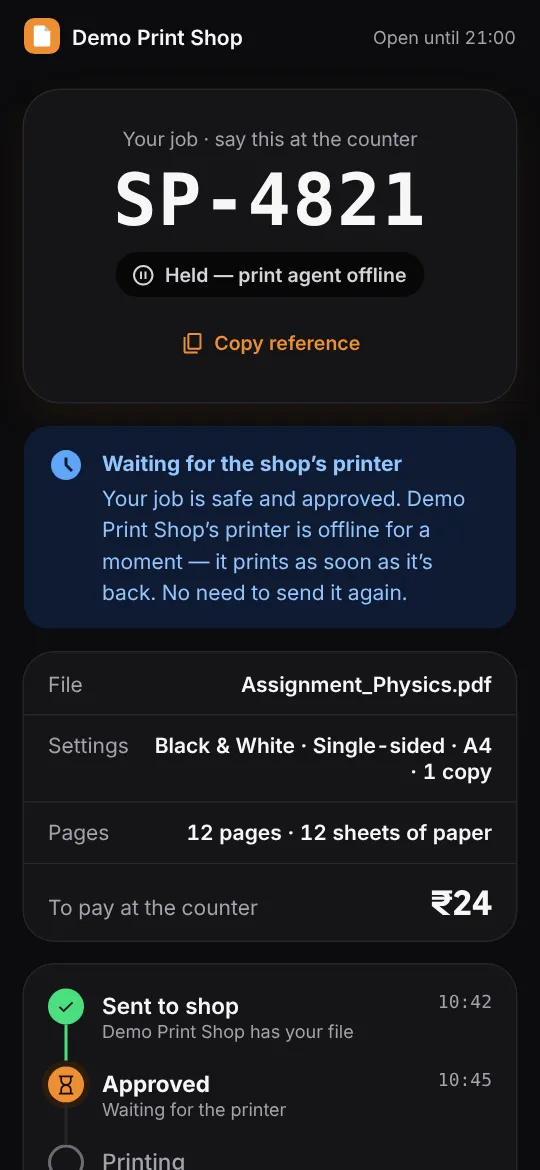
  8. Step 8: When the printer stops, the job waits

    If the print agent goes offline, the approved job is held and the customer is told it will print when the printer is back. They do not need to send it again.

    The job status screen showing the job held because the print agent is offline, with a message that it is safe and approved

Built so nothing prints by mistake, and no file lingers

  • Files are stored privately, never in a personal chat, and only the shop's staff can open them.
  • Every file is deleted automatically after the job is closed, and the customer is told so before sending.
  • Nothing prints until the customer sends the order and the shop approves it.
  • Customers see the amount to pay before sending, worked out from pages, sides and copies.
  • Customers only see the print options the shop's printer supports.
  • A job that might print twice is never reprinted automatically. It goes to the shop to decide.

Have a Similar Problem? Let's Talk It Through.

Your workflow will not be identical, and it does not need to be. Tell us what is slow, manual or missing, and we will tell you honestly whether something like this would help.

More use cases

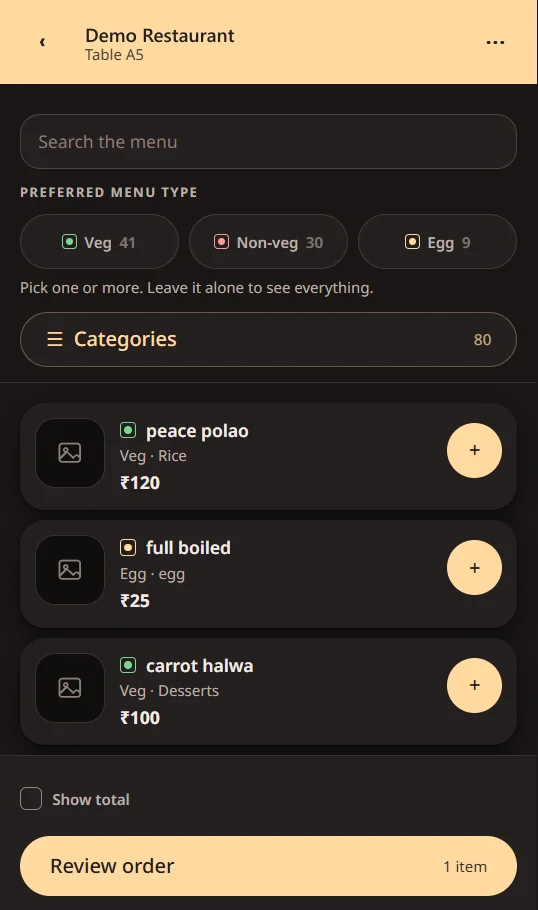
  • A restaurant's QR menu on a phone, with veg, non-veg and egg filters and dishes that can be added to the order

    Client project · Restaurant · Anonymised

    Make every table visit an opportunity to serve better.

    The problem: Guests need an easier way to browse, order and ask for service — without adding work for the floor team.

    What we built: A table-QR menu for ordering and service requests, with the floor team and the owner seeing the same requests the moment a guest taps.

    See how it works: Make every table visit an opportunity to serve better.
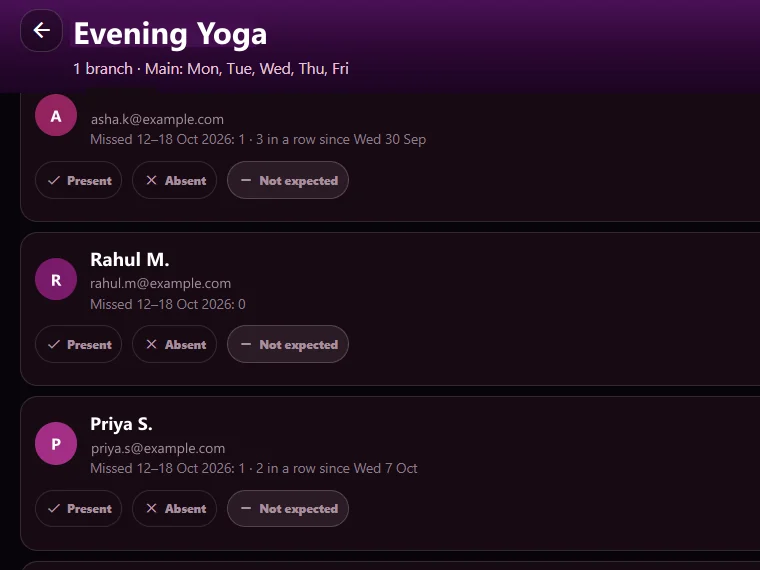
  • A course's attendance list showing each member's missed sessions and present, absent or not-expected marks

    Client project · Fitness academy · Anonymised

    Turn attendance records into proactive member engagement.

    The problem: Academies and fitness studios often notice repeated absences only after a member has already drifted away.

    What we built: Online-class attendance is imported, members who miss a set number of sessions are flagged, and course-wise reminder emails go out — with a record of every email sent, bounced or excluded.

    See how it works: Turn attendance records into proactive member engagement.
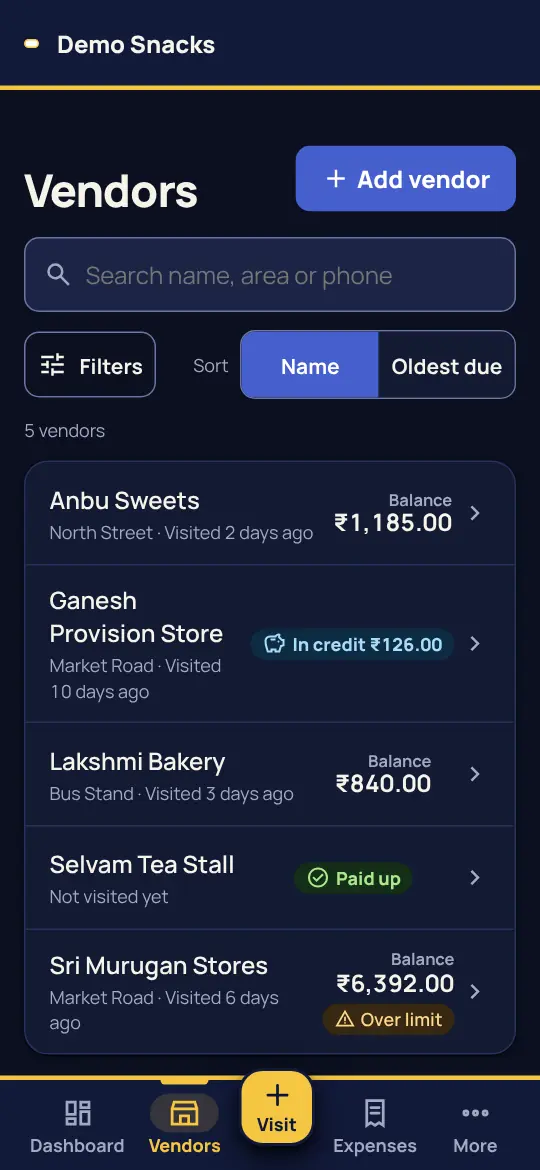
  • The owner's list of shops on a phone, each with its balance, a paid-up or in-credit tag and an over-limit warning

    Client project · Snack maker · Anonymised

    Every shop visit — returns, delivery and payment — in one go.

    The problem: A snack maker supplying local shops kept returns, deliveries and payments in a notebook. What each shop owed, which stock was expiring and whether the business made a profit were all guesswork.

    What we built: A phone app for the owner: one visit records returns, the new delivery and the payment, opens WhatsApp with a ready summary and a UPI pay link, and shows balances, expenses and profit.

    See how it works: Every shop visit — returns, delivery and payment — in one go.
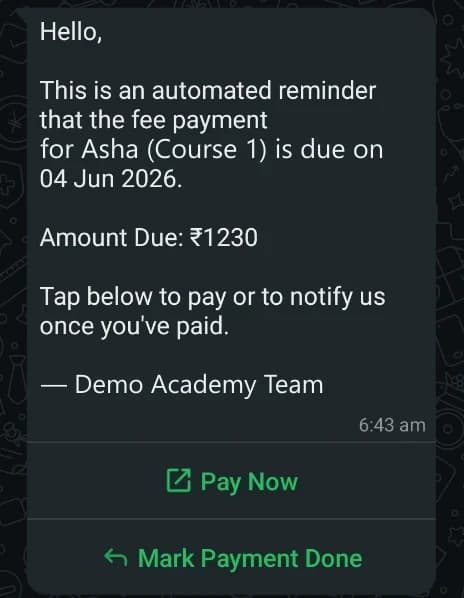
  • An automated WhatsApp fee reminder with the amount, the due date and Pay Now and Mark Payment Done buttons

    Our own product · UniqBrio

    Spend less time chasing fees.

    The problem: Manual follow-ups make it hard to keep track of due dates, payment status and new enquiries across courses.

    What we built: Course-wise payment tracking, WhatsApp reminders with a pay link, and a simple online path from enquiry to enrolment.

    See how it works: Spend less time chasing fees.
  • Our own product · Relavya

    Private beta

    Remember everyone you meet. Follow up like you mean it.

    The problem: After an event you have cards, WhatsApp numbers and LinkedIn requests, but not what you talked about. A generic message feels awkward, so the follow-up waits and usually never happens.

    What we built: A private notebook of the people you meet at events. Save a person and one memory in seconds, then open a ready, personal follow-up in your own WhatsApp, LinkedIn or email.

    See how it works: Remember everyone you meet. Follow up like you mean it.